Studio
Fit, inspect, and export.

SMILE Studio is an integrated desktop IDE for machine learning and data science. It combines an interactive multi-language notebook, an AI-powered agent panel, a file explorer, and a kernel explorer in a single window. Launch it from the release package:
cd bin
./setup    # first-time: installs native libraries
./smile    # launches SMILE Studio
SMILE Studio requires Java 25 and a graphical (non-headless) environment.
At least 4 GB RAM; 8 GB recommended for large datasets.
Open Studio from your project directory so the file tree, notebooks, and
SMILE.md memory file all live next to your data.
Your First Session
-
Download the latest
smile-<version>.zipfrom the releases page and unzip it. -
Run first-time setup once (BLAS/LAPACK, Python venv — see Quick Start):
/path/to/smile/bin/setup -
Create a project folder and put datasets in
input/:mkdir -p myproject/input # copy your CSV / Parquet / … files into myproject/input/ -
Launch Studio from the project directory (so the file tree and
SMILE.mdsit next to your data):cd myproject /path/to/smile/bin/smile -
Configure an AI provider under File > Settings… (needed for agents, cell prompts, and Tab completion).
-
In Clair’s tab, initialize the project, then explore with natural language, AutoML, or a notebook:
/init
/automl
Or open a notebook and work through the Tutorial examples cell by cell.
Application Layout
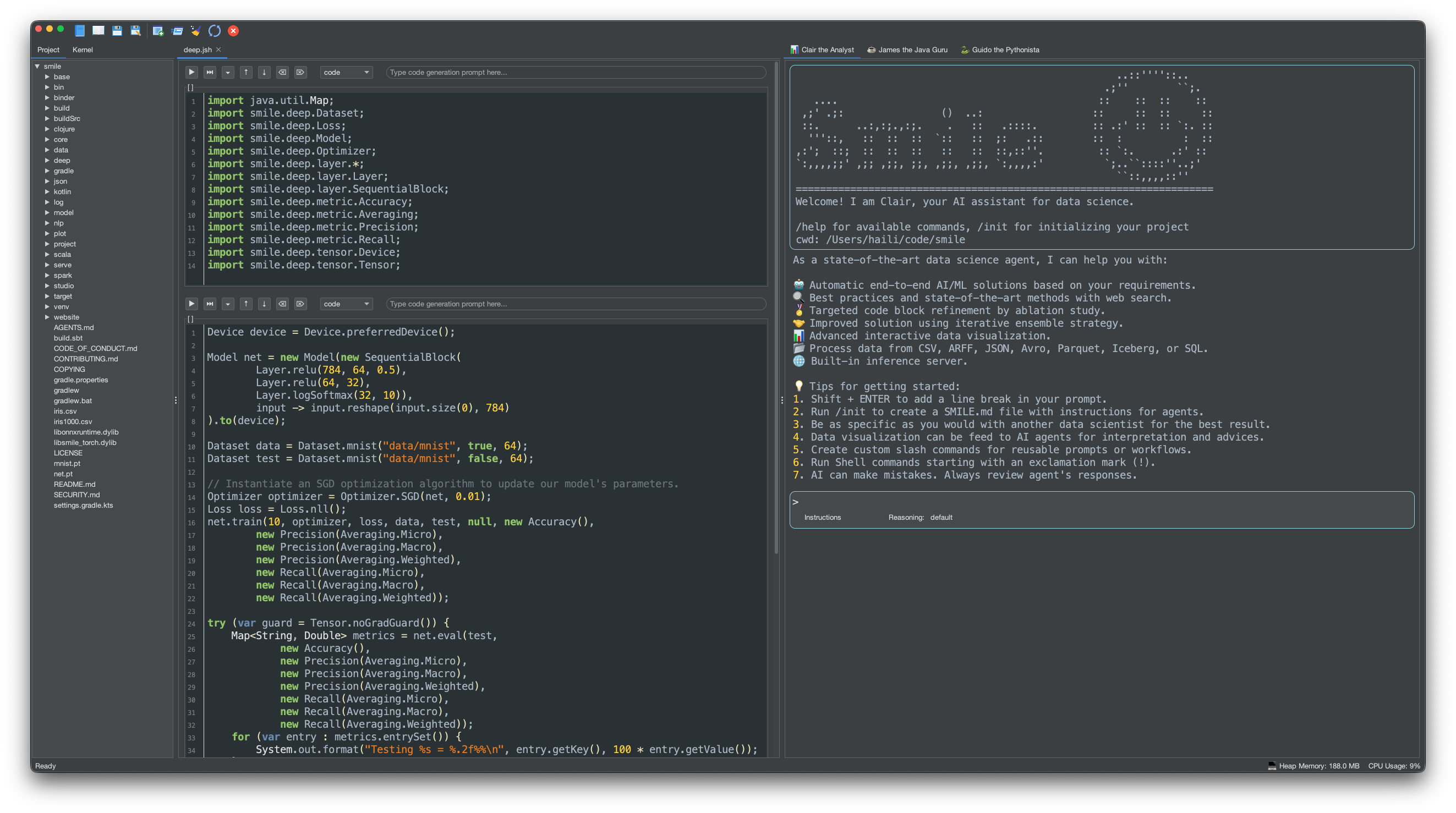
| Panel | Description |
|---|---|
| Notebook (center) | Multi-cell editor supporting Java (JShell), Scala, Kotlin, and Python kernels.
Supports .java, .jsh, .scala,
.sc, .kts, .py, and .ipynb files. |
| AI Agent Panel (right) | Nine built-in agents: Frank the Chief of Staff (coordination),
Steve the Product Manager (product),
Julien the Evangelist (growth & community),
Mike the DealMaker (B2B sales),
Clair the Data Scientist (end-to-end ML),
Ada the Architect (system design),
James the Java Guru (Java/SMILE),
Guido the Pythonista (Python), and
Chuck the Desktop Operator (GUI automation). Supports slash
commands, shell execution, peer-to-peer delegation, and long-term memory via SMILE.md. |
| Project Explorer (left) | File tree of the current working directory. Double-click any supported source file to open it in the notebook. |
| Kernel Explorer (left) | Live view of runtime variables grouped by type (DataFrames, Matrices, Models, Services).
Double-click a Model node to save it as a .sml file and register
it as an inference service. |
Using the Notebook
File > New creates an Untitled.java notebook
with SMILE imports already filled in. File > Open… or
double-click a file in the Project Explorer loads
.java / .jsh, .scala / .sc,
.kts, .py, or .ipynb. Other text files open in the Notepad
instead of the notebook.
Each cell has a type combobox (Code, Markdown,
or Raw), a Prompt field for AI code generation,
and a toolbar to run, move, clear, or delete the cell. Execution is asynchronous;
a second Run while a cell is still running shows a warning rather than overlapping
jobs. After a successful snippet, Studio prints the last value
(for example ⇒ DataFrame df = [200 rows × 5 columns]).
Save with File > Save. Enable File > Auto Save to write every 60 seconds (only notebooks that already have a path). If another process changes an open file, Studio asks whether to reload.
Project and Kernel Explorers
The left split has two tabs:
- Project — file tree of the working directory. Double-click a notebook/script to open it; double-click other text files to open them in Notepad.
- Kernel — live variables from the active notebook,
grouped as DataFrames, Matrix, Models, and Services.
Double-click a DataFrame or matrix to open a viewer; double-click a
Model to save a
.smlfile; double-click a Service to start a REST inference server for that model.
Execution Kernels
| Kernel | How to use | Notes |
|---|---|---|
| Java (JShell) | Open or create a .java / .jsh notebook |
Runs in a separate JVM; ZGC, 75% max RAM. New notebooks are pre-populated with all SMILE imports. |
| Scala | Open a .scala / .sc notebook |
Scala 3 REPL; all SMILE Scala operators available. |
| Kotlin | Open a .kts notebook |
Kotlin Custom Scripting Host; idiomatic SMILE Kotlin API available. |
| Python (iPython) | Open a .py / .ipynb notebook |
Requires pip install ipython. |
Key Shortcuts
| Shortcut | Action |
|---|---|
Ctrl + Enter | Run cell, stay in current cell |
Shift + Enter | Run cell, move to next cell (creates one if needed) |
Alt + Enter | Run cell, insert new cell below |
Tab | AI-powered line completion (requires AI service configured) |
Ctrl + = / Ctrl + - | Increase / decrease font size globally |
Magic Commands
Notebook cells can run kernel-specific magics without leaving the editor.
In a Java cell, lines starting with //! are intercepted
before they reach JShell. The supported magic resolves a Maven
artifact (transitively) and adds it to the JShell classpath at
runtime — no kernel restart required:
//!mvn org.apache.commons:commons-math3:3.6.1
Python notebooks use IPython’s built-in magics (line magics with
%, cell magics with %%). See IPython’s
magic command reference
for the full list. Common examples:
%pip install pandas
%time df.describe()
%%timeit
model.fit(X, y)
AI Agents
The right-hand Agent Panel ships with nine built-in agents,
each in its own tab. They appear in the order Frank, Steve, Julien, Mike, Clair,
Ada, James, Guido, Chuck. Switch between them depending on the task, or mention
any teammate with @name for peer-to-peer delegation:
| Agent | Role |
|---|---|
| Frank the Chief of Staff | Strategic partner: prioritization, cross-agent coordination, status synthesis, and holding work to stated goals. |
| Steve the Product Manager | Frames objectives, user stories, experimentation hypotheses, PRDs, and analytical roadmaps. |
| Julien the Evangelist | Developer and product evangelist: brand narrative, positioning, content strategy, social posts, launches, and community growth. |
| Mike the DealMaker | Founder-led B2B sales operator: buying signals, prospect lists, lead qualification, outbound sequences, pipeline tracking, and meeting prep. |
| Clair the Data Scientist | End-to-end ML workflow: load data, visualize, engineer features, train, evaluate, explain, and serve models. |
| Ada the Architect | System design, domain decomposition, contracts, non-functional requirements, ADRs, and polyglot implementation. |
| James the Java Guru | Java 25 and SMILE API specialist: code generation, reviews, concurrency/security audits, tests, and notebook completion. |
| Guido the Pythonista | Python scientific stack specialist: notebooks, data pipelines, packaging (uv, ruff, mypy, pytest), and CLIs. |
| Chuck the Desktop Operator | Drives native GUI and browser applications: navigation, screenshots, and on-screen verification. |
All nine require an AI provider (OpenAI, Anthropic, Google Gemini, Azure OpenAI,
Vertex AI, or an OpenAI-compatible endpoint) under File > Settings….
API keys are stored securely in your operating system’s native credential store
(macOS Keychain, Windows Credential Manager, or Linux Secret Service) via
SecretStore, with environment variable overrides and owner-restricted
fallback files under ~/.smile/credentials.
MCP (Model Context Protocol) servers can be wired in via
.smile/mcp.json for extra tools.
Prompts
You can drive the agents from two places:
- Notebook cell Prompt field — type a natural-language description (e.g. “load iris.csv into a DataFrame”) and press Enter. Generated code streams into the cell editor. Press Tab in the editor for single-line completion.
- Agent Panel — send an Instructions turn
(legend
>) for a conversation, or a Shell turn (legend!) to run a subprocess. Agents keep project context inSMILE.md.
Slash Commands
In the Agent Panel, type / followed by a command and press
Ctrl+Enter. A hint tooltip appears as you type.
Session, memory, and CLI commands are shared; the longer skill list below
is what Clair exposes for end-to-end ML work.
Type /help in a given agent tab for that agent’s full set.
Session, memory, and tools
| Command | Description |
|---|---|
/memory show | Display the content of long-term memory |
/memory add | Add facts or notes to long-term memory |
/memory edit | Open a notepad to edit the long-term memory |
/memory refresh | Reload the context from disk |
/plan | Enter plan mode |
/plan off | Exit plan mode |
/clear | Clear the current conversation session |
/compact | Summarize the conversation and retain critical details |
/edit | Edit a file with the notepad |
/open | Open a file with the default application |
/find-docs | Retrieve up-to-date documentation, API references, and code examples |
/changelog | Create a customer-friendly changelog from git commits |
/pptx | Create a PowerPoint presentation |
/skill-creator | Create, improve, and measure agent skills |
Train, predict, and serve
| Command | Description |
|---|---|
/train | Train a machine learning model |
/predict | Run batch inference |
/serve | Start an inference service |
Clair skills
| Command | Description |
|---|---|
/init | Initialize a data analysis project from one or more data files: load data, profile structure and quality, detect column-name issues, generate summary statistics, identify key patterns, and write SMILE.md |
/summarize | Analyze a tabular data file and produce a comprehensive summary (structure, quality, statistics, patterns, visualizations) without asking what to do next |
/exploratory-data-analysis | Systematic EDA on tabular data: structure, quality, distributions, relationships, and anomalies before modelling |
/preprocess | Clean, repair, and prepare raw tabular datasets for model readiness |
/resampling | Balance class distributions with oversampling, undersampling, or hybrid resampling |
/feature-engineering | Select, create, transform, and validate input features |
/deep-feature-synthesis | Generate features from multi-table relational data via Featuretools (Deep Feature Synthesis) |
/caafe | Context-Aware Automated Feature Engineering from a natural-language dataset description |
/model-selection | Choose a model family from problem type, data characteristics, and constraints |
/hyperparameter-tuning | Search for an optimal hyperparameter configuration within a compute budget |
/neural-architecture-search | Design and optimize neural network architectures for a task, dataset, and hardware |
/model-evaluation | Evaluate and compare models with task-appropriate metrics, visualizations, and statistical tests |
/postprocess | Calibrate and interpret raw predictions into user-ready outputs |
/automl | End-to-end automated pipeline: EDA, preprocessing, features, model selection, tuning, architecture search, ensembling, postprocessing, and evaluation |